
Topic: Web browsers and A.I. Grammar: Phrasal verbs
TEXT
Using Gemini in the Chrome Browser
This text, adapted from the Video ” Five New Ways to Use Gemini in the Chrome Browser, by Kevin Stratvert, and summarized by ChatGPT, is designed to help non‑native learners build essential web‑browsing vocabulary while practicing common phrasal verbs.
- Using Gemini in the Side Panel with Tab Context
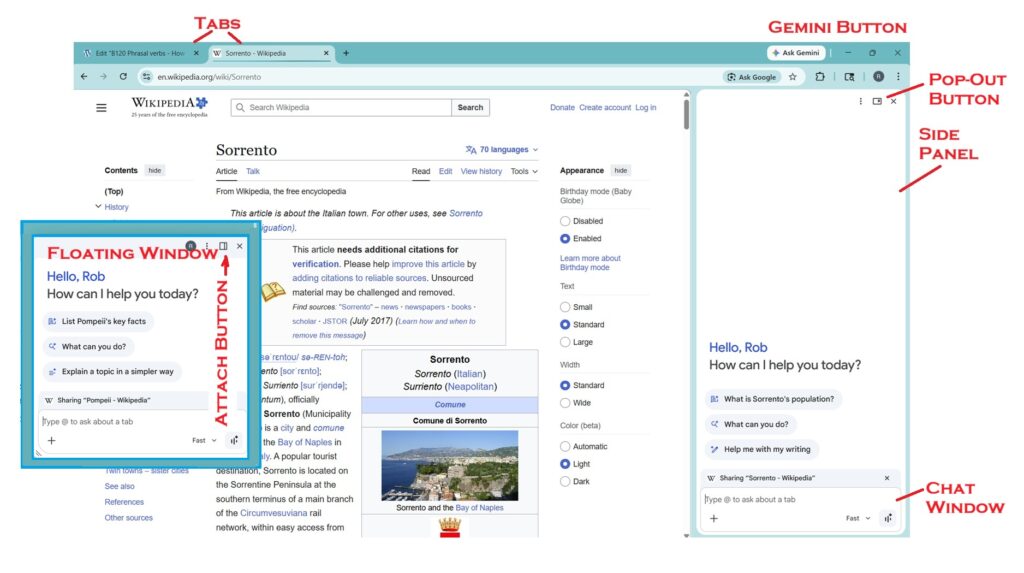
To use Gemini in the side panel with tab-based context, start by opening up the Chrome browser and clicking on the Gemini button in the top right corner. If the button does not show up, you need to sign in to your Google account first. Once Gemini pops up, it will open in a side panel. Go ahead and type in your question, and Gemini will base its answer on the tab you are currently looking at. If you want to change the context, you can clear it out or bring in other tabs by clicking on the plus button. After you set things up, ask your question again and Gemini will pull information from the tabs you added. - Switching Between Side Panel and Floating Window
To switch between the side panel and a floating window, first bring up Gemini in the side panel. Then click on the pop-out button to pull it out into a floating window. You can move it around and set it up anywhere on your screen. When you want to put it back, simply click the attach button and it will snap back into the side panel. - Generating and Modifying Images
To generate or modify images using Gemini, open up the Gemini panel and type in a description of the image you want. Gemini will create the image, and you can keep asking it to change things until you get what you are looking for. If you want to work on an existing image, right-click on it and open it up in a new tab. Then switch over to that tab, start up a new chat, and tell Gemini what to change. For example, you can ask it to take out objects or change the scene. When it finishes, you can save the image or open it up in another tab.
- Using Auto Browse to Complete Tasks
To use the auto browse feature, open up a webpage related to your task and then bring up the Gemini panel. Ask Gemini to carry out a task, such as looking up products, comparing options, or adding items to a cart. The first time you try this, you will need to give it permission. After that, Gemini will open up a new tab and start working through the task on its own. You can either watch what is going on or step away while it carries on. If something comes up, like a login page, you may need to step in and deal with it. When everything is done, look over the results and ask Gemini to make any changes if needed.
- Connecting Gemini with Google Apps
To connect Gemini with apps like Gmail, Calendar, and Google Maps, go into Chrome settings and look for the AI innovations section. From there, click on Gemini in Chrome and go into the option to manage connected apps. Turn on access for the apps you want to link up. After that, open up the Gemini panel and ask it to pull up or work with information from those apps. For example, you can ask it to go through your emails, set up a plan, or map out a route. Gemini will gather everything together, carry out the task, and give you results such as links or drafts. You can then follow up with more requests or ask it to adjust the results.
NEW WORDS
(WORDS USED IN THE FULL TRANSCRIPT)
Tend, jump around, assistant, access, release, updates, feature, announce, panel, browser, button, profile, side panel, floating panel, setting, update, install, chat, field, tab, relate, content, default, context, pretty close, option, marketing material, layout, pop the chat out, floating window, attach, amazing, switch, focus, generate, research, take over, control, similar, organization, kayak, tour, refer, safety, equipment, cart, permission, camping, sporting goods, recipe, ingredient, flight, rental car, alert, manually, task, assemble, glove, category, innovation, manage, connect, conference, attend, host, recommendation, plan, route, adjustment, bakery, cookies, itinerary, feedback, draft, after-hours, all set, dedicate, prepare, announcement, intelligence, personalize, response, interaction, subscription, snapshot, demo, reveal, private, privacy, disable, entire, race, convenience, lead, AI-enabled, integration, big deal.
COMPREHENSION QUIZ
READING SKILL QUIZ (SUMMARY SECTION)
- What should you do if the Gemini button does not show up in Chrome?
A. Turn it off and on again
B. Sign in to your Google account
C. Close all tabs
D. Download a new browser - What does “pop out the panel” mean?
A. Delete the panel
B. Move the panel to another tab
C. Change it into a floating window
D. Hide the panel - What should you do before editing an image from a website?
A. Save the image first
B. Close the Gemini panel
C. Open the image in a new tab
D. Print the image - In Auto Browse, what might you need to do if something comes up (like a login page)?
A. Turn off the computer
B. Step in and help
C. Start a new browser
D. Delete the task - What does Gemini do when you connect it to apps like Gmail or Maps?
A. It deletes your emails
B. It blocks your apps
C. It uses information from those apps
D. It logs you out
Answer key: 1B 2C 3C 4B 5C
LISTENING SKILL QUIZ (VIDEO)
- Where can you find the Gemini button in Chrome?
A. At the bottom of the screen
B. In the settings menu
C. In the top right corner
D. In the address bar - Why might the Gemini button not appear?
A. The browser is too old
B. You are not signed into a Google account
C. You have too many tabs open
D. The internet is not working - How does Gemini usually answer questions by default?
A. It uses all open tabs
B. It uses the current tab
C. It uses saved history
D. It does not use any context - What can you do if you want Gemini to use more than one tab?
A. Close the other tabs
B. Restart the browser
C. Click the plus button to add tabs
D. Turn off the side panel - What is one advantage of the new side panel design?
A. It uses less internet
B. It blocks the webpage less
C. It loads faster
D. It changes the browser color
Answer Key
- C 2B 3B 4C 5B
GRAMMAR
SPEAKING PRACTICE
| Say a sentence that fits the context | Answer |
|---|---|
| Say that you feel happy and excited about your vacation next month and can’t wait to go. | I am looking forward to my vacation next month. |
| Tell your friends they should not leave the TV playing when they leave the room | You should turn off the TV. You should turn the TV off. |
| Say that after thinking for a while, you finally have a good idea | I came up with a good idea for the project. |
| You tried to solve a very difficult math problem for two hours, but now you decide you don’t want to continue trying. | I will give up this problem. I will give this problem up. |
| Say that you are going to the airport to meet your friend and drive him home | I am going to pick up my friend at the airport. I am going to pick my friend up at the airport. |
| Say that you and your new classmate have a very good relationship. You like each other and work well together. | I get along with my classmate. |
| Say you decide to find the meaning of a word in a dictionary or online. | I will look up this word. I will look this word up. |
| Your teacher speaks very fast, but you are still able to follow and understand everything. | I can keep up with the teacher. |
| There was going to be a football match, but because of heavy rain, it is canceled. | They had to call off the match. They had to call the match off. |
| You bought a new computer and now you are preparing it so it can be used. | I will set up my new computer. I will set my new computer up. |
| You didn’t know the answer before, but now you have discovered the information. | I found out the answer. I found the answer out. |
| Your neighbor asks you to take care of her dog while she is on vacation. | I will look after your dog. |
| You planned to study for one hour, but finally you studied for three hours instead. | I ended up studying for three hours. |
| You arrive at a hotel and go to the front desk to register and get your room key. | I need to check in at the hotel. |
| You enter your username and password to access your social media account. | I need to log in to my account. |
| You are taking care of a child while the parents are away on a trip. | I am looking after the child while the parents are away. |
| You move your finger on your phone screen to read many posts one after another. | I am scrolling through the posts. |
| Your meeting is planned for today, but you decide to move it to next week. | We need to put off the meeting until next week. We need to put the meeting off until next week. |
| Your classmates are having a discussion, and you decide to participate. | I will join in the discussion. |
| At the doctor’s office, you complete a form with your personal information. | I need to fill out this form. I need to fill this form out. |
| Yesterday, you met your old teacher by chance at the supermarket. It was not planned. | I ran into my old teacher at the supermarket. |
| Your friend sends you a message, and you tell her you will write back to her. | I will reply to your message. |
| You have a very good relationship with your coworkers. You work well together every day. | I get along with my coworkers very well. |
| While reading a book, you accidentally discover an interesting story you were not looking for. | I came across an interesting story in the book. |
| Your teacher speaks quickly, and you are able to follow and understand everything. | I can keep up with the teacher. |
ORIGINAL TRANSCRIPT
I tend to jump around between different AI chat assistants, but when I’m working in the Chrome web browser, the Gemini button is right there, letting me access Gemini much faster than any other assistant. So, I’ve been using Gemini a little more often these days, which is great because Google just released some powerful new updates. I’m Nick and I’m going to show you five new features that Google has announced for the Gemini panel inside of Chrome. [snorts]
In the Chrome browser, look for the Gemini button in the top right. And if you don’t see that button, it’s probably because you’re not signed into a Google account. Click the profile button and make sure you’re signed into your Google account there. Now, when you click that Gemini button, we immediately see the first new feature. Gemini opens up as a side panel in the Chrome browser window. In the past, Gemini would open up as a floating panel, which could sometimes block what you needed to see on the web page. Now everything is cleanly separated in that side panel. And if you’re not seeing that side panel, go into Chrome settings and make sure to run any updates and you may need to restart after installing the updates.
Now let’s take a closer look at the chat field. It shows that it’s sharing the browser tab that I’m currently looking at. So I can ask a question and Gemini answers the question as it relates to the content of this page. But I have three tabs open in Chrome. When I go to each tab, I can choose to have the Gemini panel open or closed on each one. And the default setting is to answer questions about the tab that I’m currently looking at. If you want, you can clear that and then you can ask a general question that has nothing to do with the page that you’re looking at. Or you can click the plus button and add any of the tabs that you currently have open or all of them if you want. Then ask a question using the context of all of those tabs. I’ll ask which of these would be the least expensive to visit in April. Looks like they’re pretty close, but a trip to Paris might be the best option.
Now, according to Google’s marketing material, the side panel itself is the new feature. But in my opinion, the new feature is that you get to choose the layout you want because in the side panel, you can click a button to pop the chat out into a floating window like it was in the past, but now you can move that window around or click the button to attach it back into the side panel.
The second new feature is that you can now use Nano Banana inside the Gemini panel in Chrome. Nano Banana is Google’s amazing image generator. You can simply describe the picture you want. So, let’s make a poster for this trip to Paris. It uses Nano Banana, then generates the picture. And as always, you can ask for changes until you get what you want. Or if you are browsing the web and find a picture that looks interesting, you can use the Gemini panel in Chrome to modify it. I think it’s best if you right-click on the picture and choose open image in new tab. Then switch to that tab so you’re just focusing on the picture. I don’t want to modify the picture that we just generated, so I’ll be sure to start a new chat. And I’ll tell it to remove the people from this picture and make it a rainy day. And after a moment, it gives me that modified picture. I can right click on the picture and save it or click on it to see it in a new tab in Chrome.
Next, let’s take a look at auto browse. We know that Gemini can go out on the web and do research, but now it can actually take over the controls and do real work for you in your browser. Auto browse is one of the features that requires a personal Google account with the Google AI Pro or AI Ultra subscription, and it will not work if your computer is managed by your employer or a similar organization. With that in mind, I found some information about a kayak tour that I want to do. Let’s get Gemini to do some shopping to help me get ready. I’ll open up Gemini in Chrome so it will refer to the information on this page, and I’ll tell it that the boat and the safety equipment are included, but I want it to find everything else I need from the REI website and add it to the cart. If it’s your first time using the auto browse feature, you’ll need to give Gemini permission. Then Gemini starts the auto browse task, and I can switch over to the new tab and follow what’s happening. Or I could just walk away and let Gemini do all the work. It’s working on the REI website because I told it to look there. REI is a big camping and sporting goods store. Identifying a specific site is not always necessary, but I find that it helps.
A popular way to use the auto browse feature is to find a recipe, then ask Gemini to find all of the ingredients you need for the recipe. Or you could ask it to compare prices for flights or rental cars for your next trip. As it works, Gemini may ask you to take over if it needs you to sign into a website or clear some alert that blocks progress, or you could take over manually at any point if you want. When it’s finished, Gemini tells me that the task is done. The REI website is still open, so I can go to the cart and see what it assembled. You may need to go back and choose some different sizes or make other small corrections. Or you can tell Gemini to make changes. I’ll tell it to add some gloves and Gemini will start that task up again.
Now, let’s move on to our next new feature. The Gemini panel in Chrome can work with connected apps like your Gmail, Calendar, and Google Maps. But first, you have to give Gemini permission to use those connected apps. In Chrome, go to settings, then to the category for AI innovations, and select Gemini in Chrome. From there, click manage connected apps. And you can come here at any time to control which of these Gemini can access. I’ll connect it to Google Workspace so it can use my Gmail and my calendar. Now in the Gemini panel, I’ll ask it to get some information from my email about a conference I’m attending. The hosts of the conference included some tourist recommendations when they emailed me. So I’ll ask Gemini to plan a walking tour in Google Maps based on recommendations from those emails. I can see as Gemini checks my Gmail, then uses Google Maps, and it makes the plan, which includes a link for the map, which shows the entire route with all of the stops.
Let’s ask for a little adjustment. I can tell Gemini that my coworker wants to check out a local bakery with good cookies. Gemini found a few options, so I’ll tell it to add one to the itinerary. It gives me a new link for the updated tour. And just to be safe, I’m going to ask Gemini to write an email to the conference hosts sharing this plan and asking for their feedback. That draft looks good, so I’ll send it.
Now that my after-hours plans are all set, I can dedicate my time to preparing for the conference. And finally, Google made one last announcement along with all of these other new features. Personal intelligence is a feature that lets Gemini give you highly personalized help and responses based on what it learns about you from previous interactions and you can connect it to your Google apps to learn even more about you. If you have a Google AI Pro or AI Ultra subscription with a personal account, then you can work with personal intelligence in the Gemini app. Try going to gemini.google.com and ask it to show your personal intelligence snapshot. That will give you a summary of what personal intelligence has learned about you. And don’t worry, this is a demo account, so I’m not revealing any private information here.
But speaking of privacy, if you don’t want to use personal intelligence, you can go to Gemini settings to personal intelligence and you can disable the entire feature or control which Google apps it can connect to. But personal intelligence itself is not a new feature. For the moment, it only works in the main Gemini app and website. The new feature is that this will soon work in the Gemini panel in Chrome. So, when you watch this video, you might want to take a look at the settings there to see if it has been added yet.
So, those are the new features announced at the start of 2026 for the Gemini in Chrome panel. Personally, I think one of the biggest races in the AI world this year will be about convenience. The AI assistant that people get to the fastest is going to have a strong lead. And that’s why AI-enabled browsers and integration with operating systems is going to be a pretty big deal in the next few months. Of course, there are other AI browsers like ChatGPT Atlas and Perplexity’s Comet browser. And of course, Microsoft Edge has had Copilot integration for a while, including many features that are very similar to what we’ve seen here in Chrome. You can check out Kevin’s video on this channel that shows how Copilot works in Edge. But if Chrome is your default web browser, like it is for so many people, then that probably makes Gemini the fastest and most convenient AI assistant for you.
50 MOST COMMON PHRASAL VERBS
Phrasal Verb | Meaning | Example Sentence |
ask for | request something | She asked for help with her homework. |
back up | support / make a copy | Always back up your files before updating your computer. |
blow up | explode / get very angry | The car blew up after the crash. |
break down | stop working / become emotional | My car broke down on the way to work. |
break out | start suddenly | A fire broke out in the building. |
break up | end a relationship | They broke up after five years together. |
bring up | mention a topic | He brought up an interesting question in class. |
call back | return a phone call | I will call you back later. |
call off | cancel | |
carry on | continue | Please carry on with your work. |
catch up (with) | reach the same level | She worked hard to catch up with her classmates. |
check in | register (hotel/airport) | We checked in at the hotel at 3 PM. |
check out | leave / examine | We checked out of the hotel early. |
come across | find by chance | I came across an old photo yesterday. |
come back | return | He will come back next week. |
come in | enter | Please come in and have a seat. |
come on | encourage / hurry | Come on, we are going to be late! |
come up with | think of an idea | She came up with a great solution. |
cut off | interrupt / stop supply | The phone call was cut off. |
do over | do again | The teacher asked me to do the assignment over. |
drop off | I will drop off the package tomorrow. | |
end up | finally be in a situation | We ended up staying home. |
figure out | understand / solve | I can’t figure out this problem. |
fill in (out) | complete a form | Please fill out this form. |
find out | discover | I found out the truth yesterday. |
get along (with) | have a good relationship | I get along well with my coworkers. |
get back | return | When did you get back from vacation? |
get in | enter (car/building) | Get in the car quickly! |
get off | leave (bus/train) | We get off at the next stop. |
get on | board (bus/train) | Hurry up and get on the bus. |
give up | stop trying | Don’t give up on your dreams. |
go on | continue / happen | The show must go on. |
go out | leave home / socialize | We like to go out on weekends. |
grow up | become an adult | She grew up in a small town. |
hang out | spend time relaxing | |
hold on | wait | Hold on, I’ll be right back. |
keep on | continue | Keep on practicing every day. |
keep up (with) | stay at the same level | It’s hard to keep up with new technology. |
look after | take care of | She looks after her younger brother. |
try to find | I am looking for my keys. | |
look forward to | I look forward to seeing you. | |
look up | search for information | You can look up the word in a dictionary. |
make up | invent / reconcile | He made up a story to explain his absence. |
collect / learn | I will pick you up at 6 PM. | |
put off | postpone | They put off the meeting until next week. |
put on | wear | She put on her jacket. |
run into | meet by chance | I ran into an old friend yesterday. |
set up | arrange / establish | They set up a new company. |
take off | remove / plane leaves | The plane took off on time. |
start / stop a device | Please turn off the lights before leaving. |
Listen- Comprehension-Read (Vocabulary, pronunciation) -Grammar- Speaking